- We are committed to finding ways to leverage AI in Playbook to help you develop better plans.
- As a first step, plans/tasks can be imported from external sources such as AI-generated lists (Copilot etc.), Excel, Dashboard reports, emails, etc., using the Scratch Task List.
- Open your AI Assistant of choice and ask for a detailed plan.
- I need a detailed plan to develop a PCBA. Give me an HTML table containing WBS number, TaskTitle, Duration in weekdays, and Predecessor IDs (which are comma-delimited WBS numbers of the predecessors). Don’t leave out any details. Set it up for 3 iterations - Prototype Rev1, Prototype Rev2, and Production. The Production should have typical production-level tasks, e.g., first article, etc. We will accelerate as much as possible and buy the long-lead components before the layout is complete, so they are here when we are ready to assemble. I also want some depth to the hierarchy. Prototype Rev1 should be in a Prototype summary task (WBS = 1). Its first subtask (1.1) should be a summary - e,g, 'Program Initiation'. Then those subtasks are 1.1.1, etc. End the plan with a milestone.
- I asked for an HTML table because that makes it easier to copy/paste the plan into the Scratch Task List (STL).
- I asked for the WBS to establish the hierarchy of the tasks and the Predecessor IDs to reference them.
- I specified three iterations and provided a naming convention.
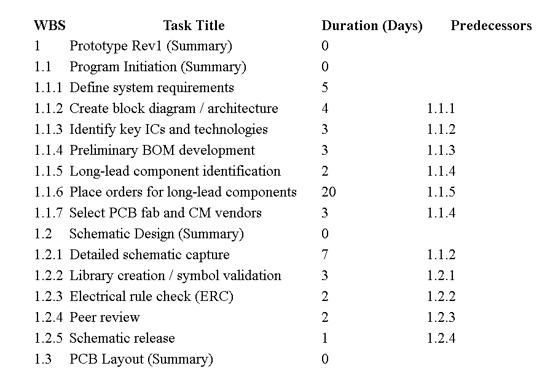
- In reality, this was an iterative process with Copilot generating a plan and me refining the requirements unitl it gave me the following table. Note: the table extends beyond what is visible here.
- I then imported the plan into Playbook using the Scratch Task List.
/Playbook/Scratch%20Task%20List/Scratch%20Task%20List%20icon.png?width=500&height=143&name=Scratch%20Task%20List%20icon.png)
- Watch this video [~4.5 min] for a demonstration of this powerful capability.
- Need a hand? Contact a Customer Success Engineer today!
- Use these links to learn more about...
English
![Playbook Logo transparent.png]](https://playbookteam.com/hs-fs/hubfs/Playbook%20Logo%20transparent.png?height=49&name=Playbook%20Logo%20transparent.png)