-
Whenever a team member makes a change to a task in Playbook that impacts the milestone date, they are prompted to capture the reason for the change. Since the buffer chart displays every shift to the milestone, you can see what caused the change when you hover over each data point.
-
Impact reasons can be used to explain milestone slips...
/Playbook/Buffers/Impact%20Reasons/Impact%20Reason%20-%2039%20Day%20Slip.png?width=670&height=499&name=Impact%20Reason%20-%2039%20Day%20Slip.png)
- As well as milestone gains...
/Playbook/Buffers/Impact%20Reasons/Impact%20Reason%20-%2027%20Day%20Gain.png?width=670&height=506&name=Impact%20Reason%20-%2027%20Day%20Gain.png)
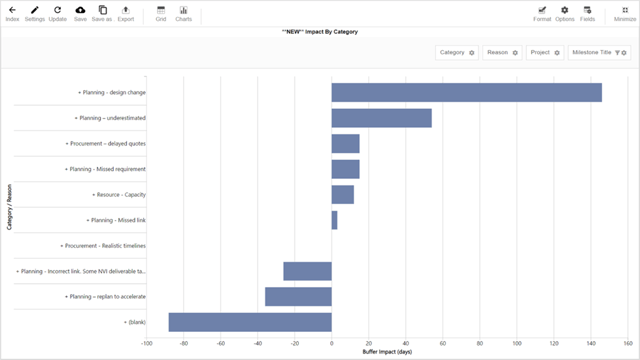
- You can also categorize reasons and show a summary of their impacts/gains.
-
You can also export a report of every Impact Reason along with the amount of delay/gain they caused so you can plan future kaizen events based on actual level of importance.
-
After all, how can you solve future problems if you can’t quantify what is causing them?
- Impact Reasons are defined in the Tracking Milestone's description using the format...
date1 <space> reason1
date2 <space> reason2
For example...- 5/30/22 Supplier delivery later than expected
- 6/8/22 Joe J. unavailable for one week due to production issues
- To define categories in your Impact Reasons... add ##Category
For example...- 5/30/22 Supplier delivery later than expected ##Supplier
- 6/8/22 Joe J. unavailable for one week due to production issues ##Resource Availability
- Need a hand? Contact a Customer Success Engineer today!
English
![Playbook Logo transparent.png]](https://playbookteam.com/hs-fs/hubfs/Playbook%20Logo%20transparent.png?height=49&name=Playbook%20Logo%20transparent.png)